
Before you start
Have your MYCURE password and phone ready. Install Google Authenticator from the official store listing for your device. Check that the publisher is Google LLC.
Other time-based one-time password (TOTP) authenticator apps work too. You are adding your MYCURE account to the app; you do not need to turn on Google Account two-step verification to follow this guide.
The screenshots below show the actual MYCURE setup screens using a demo account. Private enrollment and backup-code regions are obscured. Never scan a code from a tutorial—use the code displayed in your own MYCURE session.
1. Open Login and Security
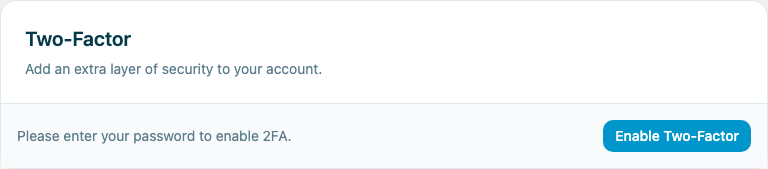
Sign in to MYCURE, then go to Settings → Account → Login and Security. Find the Two-Factor card and select Enable Two-Factor.
If a required security setup dialog appears, its Set up two-factor button takes you to the same settings page.
2. Confirm your MYCURE password
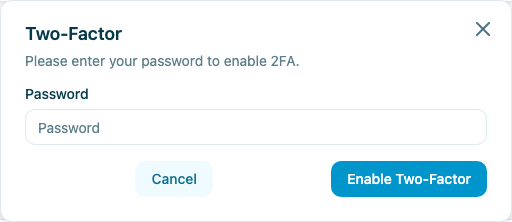
Enter your current MYCURE password in the dialog, then select Enable Two-Factor. This confirms that you are the person changing your account security.
3. Save your backup codes first
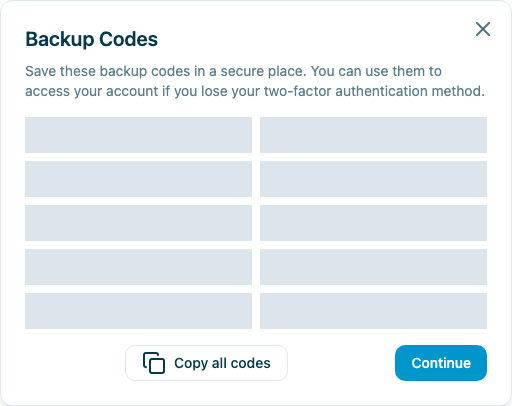
MYCURE shows your Backup Codes before the scanning screen. Select Copy all codes and save them privately in a password manager or another secure place you can access if you lose your phone. Then select Continue.
Each backup code works only once. Do not share them, send them in chat, or leave them on a shared clinic computer.
4. Scan your setup code and verify
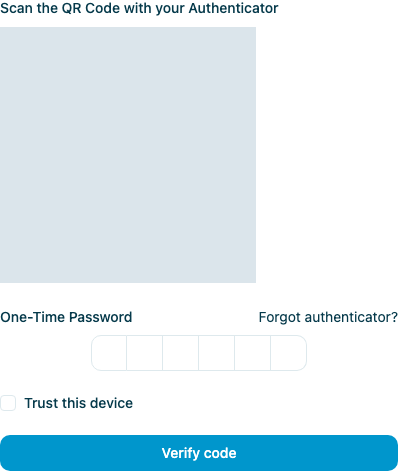
- On your phone, open Google Authenticator. Tap + and choose the option to scan a quick response (QR) code.
- Point your phone at the QR code in your own MYCURE browser window. Use another screen for MYCURE if you are setting up on the same phone.
- Find the new MYCURE entry in Google Authenticator and enter its current 6-digit code in the One-Time Password field.
- MYCURE may verify automatically after the sixth digit. If needed, select Verify code to finish.
Leave Trust this device unchecked on shared or public devices.
5. Check that setup is complete
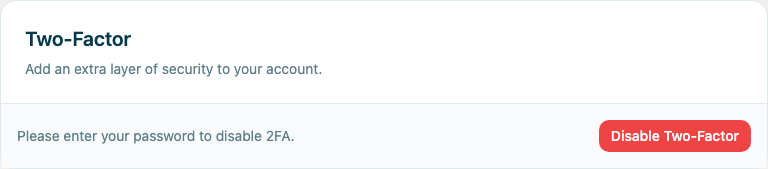
Return to Settings → Account → Login and Security. The Two-Factor card should now offer Disable Two-Factor instead of Enable Two-Factor. You do not need to select Disable—its presence confirms that the setting is on.
After setup is confirmed, the required setup dialog will no longer appear when you return to the dashboard.
Your next sign-in
Sign in with your MYCURE email and password. When asked for a verification code, open Google Authenticator and enter the current code for your MYCURE account. Codes change regularly, so use the code currently shown—not an earlier one.
Never share verification codes, setup codes, or backup codes with anyone, including someone claiming to provide support.
Need help?
- My code is not accepted.
- Check that you selected the MYCURE entry in your authenticator. Wait for a fresh code and try again. Set your phone’s date and time to automatic.
- I lost access to my phone.
- Choose Forgot authenticator? on the verification screen and use an unused backup code. If you cannot recover access, contact your clinic administrator or MYCURE support. Do not send your password or codes.
- I am setting up on the same phone.
- Open MYCURE on a second device so you can scan its code with your phone. Do not send your private QR code to someone else to scan for you.
Why two-factor authentication?
National Privacy Commission (NPC) Circular No. 2023-06, Section 16 requires secure authentication for online access to sensitive personal information. It lists multi-factor authentication (MFA) as an example—not a specific one-time password (OTP) method. MYCURE uses two-factor authentication to help protect account access.
Read the circular (§16)(opens in a new tab)